Instagram Settings
Go to https://yourdomain.com/admin/instagram/settings (opens in a new tab)
Or click the Instagram Action (Settings) option from the admin sidebar.
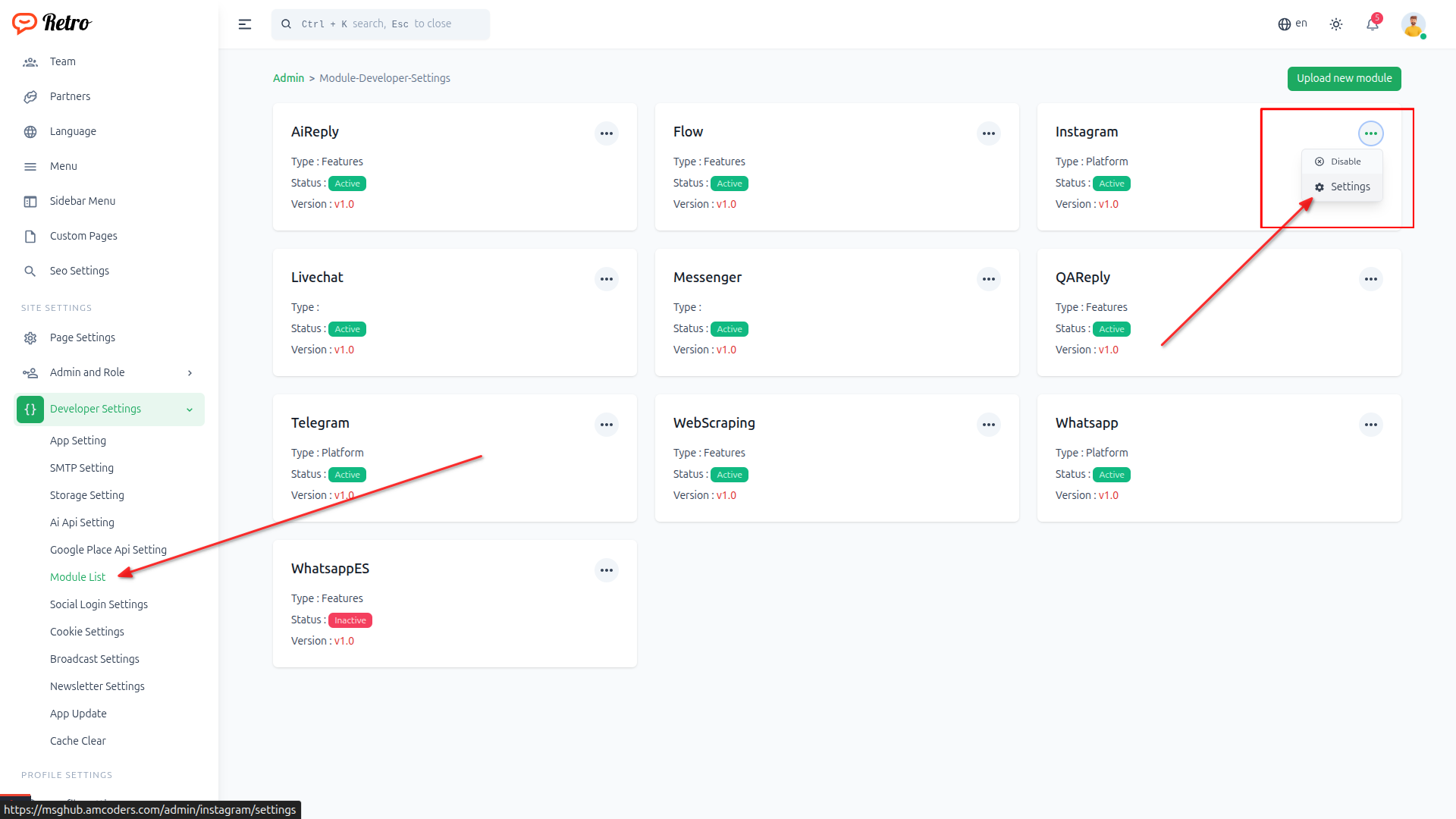
Follow the steps
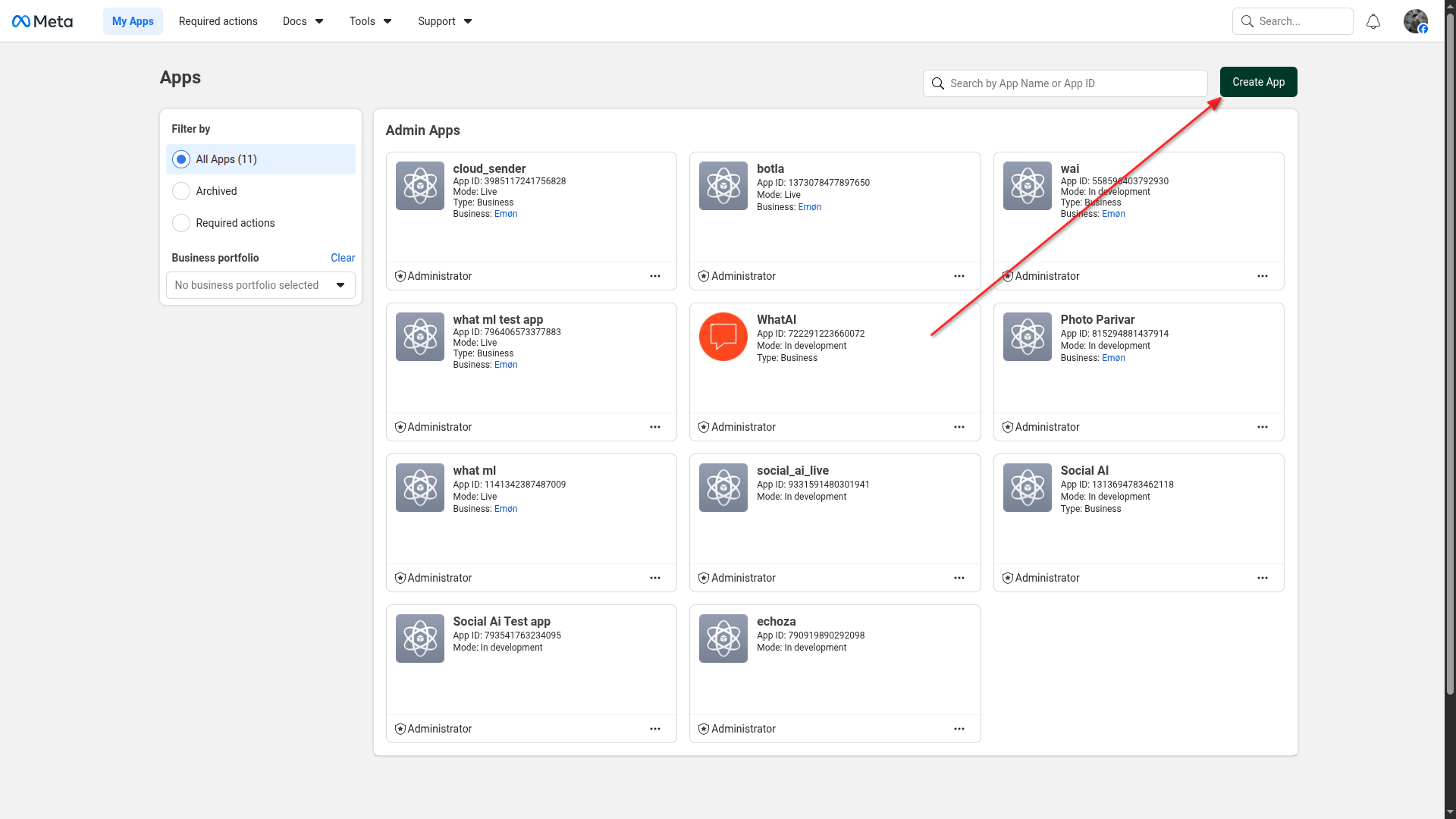
Login on developers.facebook.com (opens in a new tab)
Click the Create App button
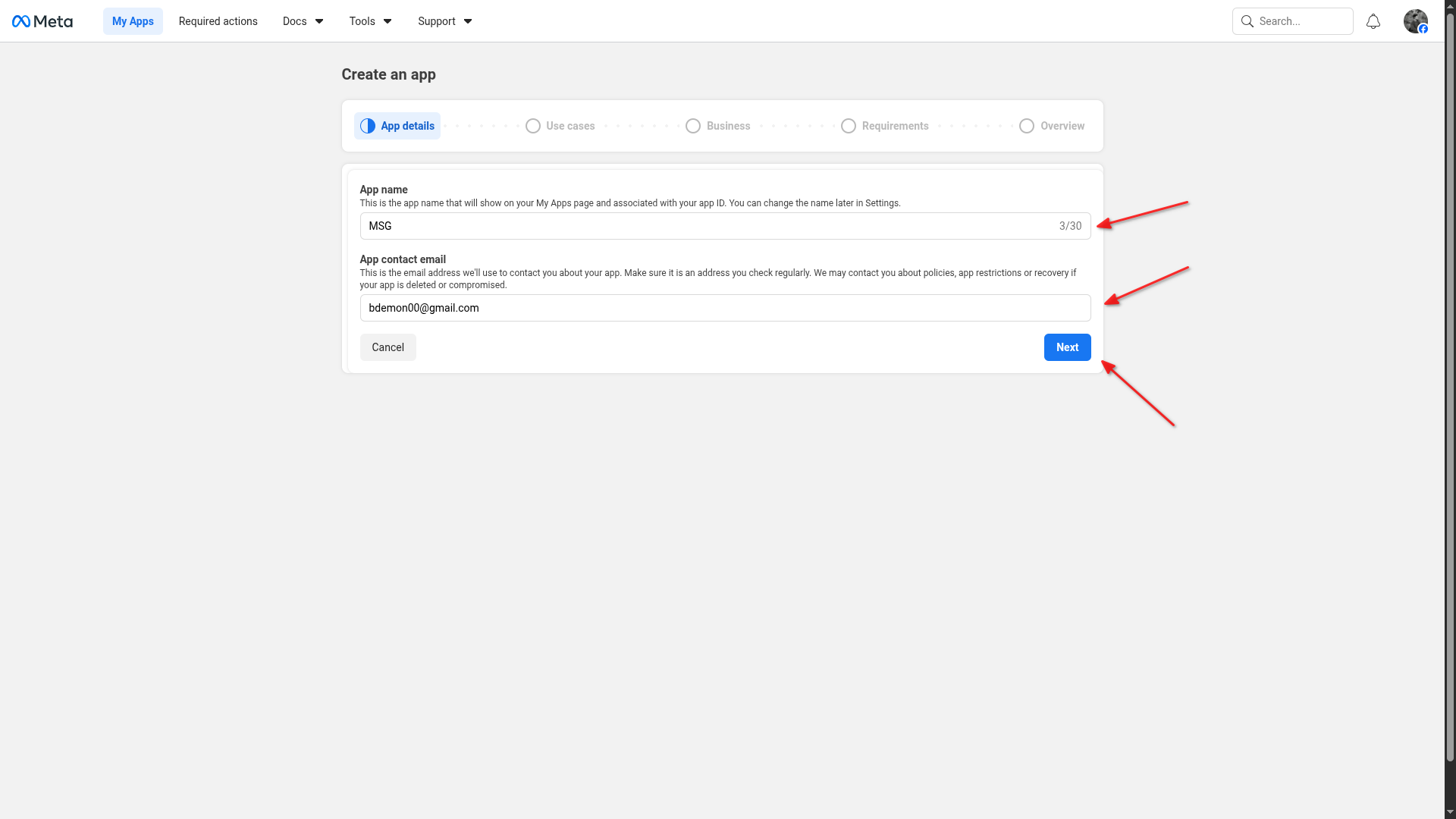
Enter your app name and contact email
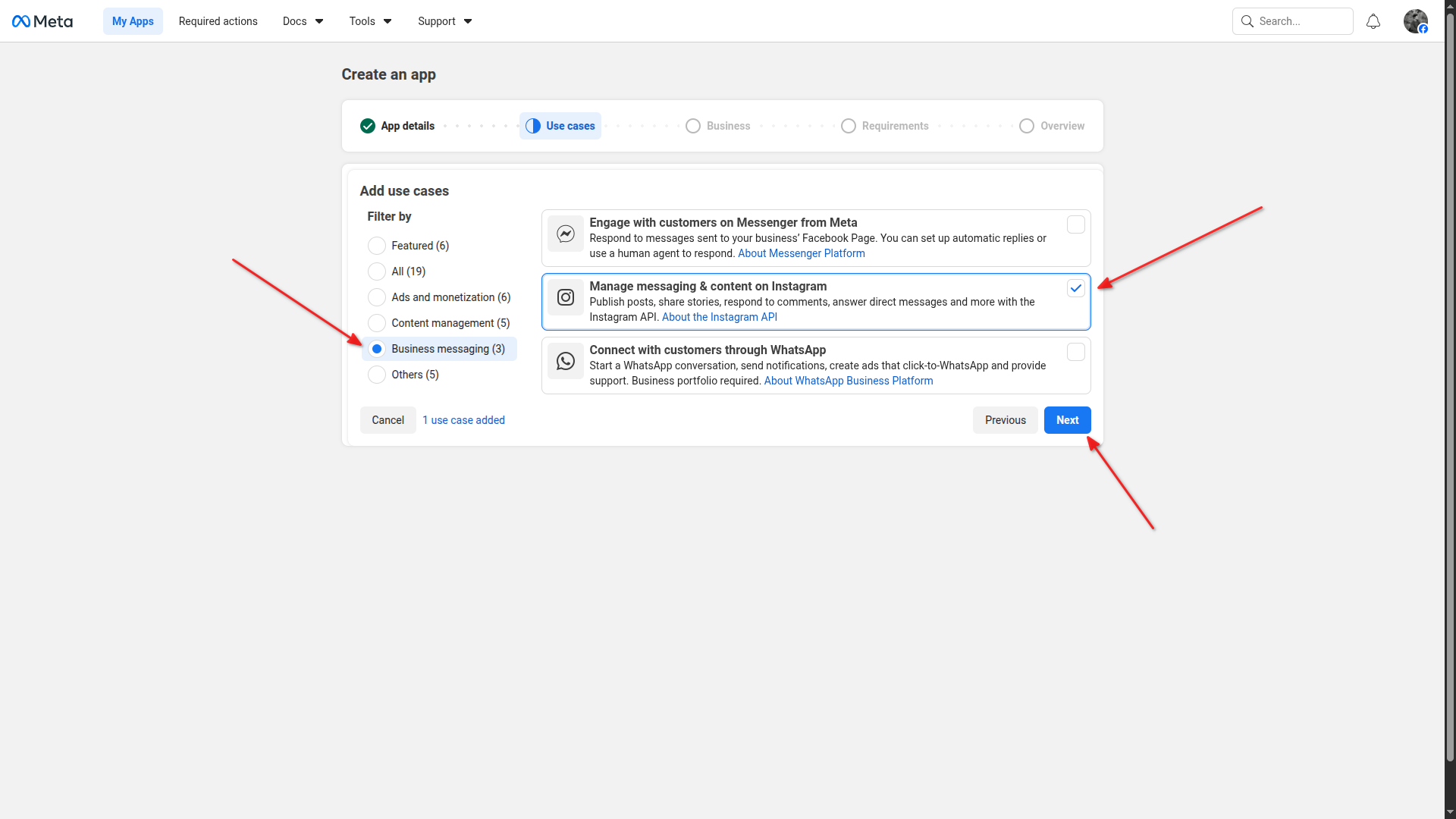
Select Manage messaging & content on Instagram as use case
Connect your business portfolio
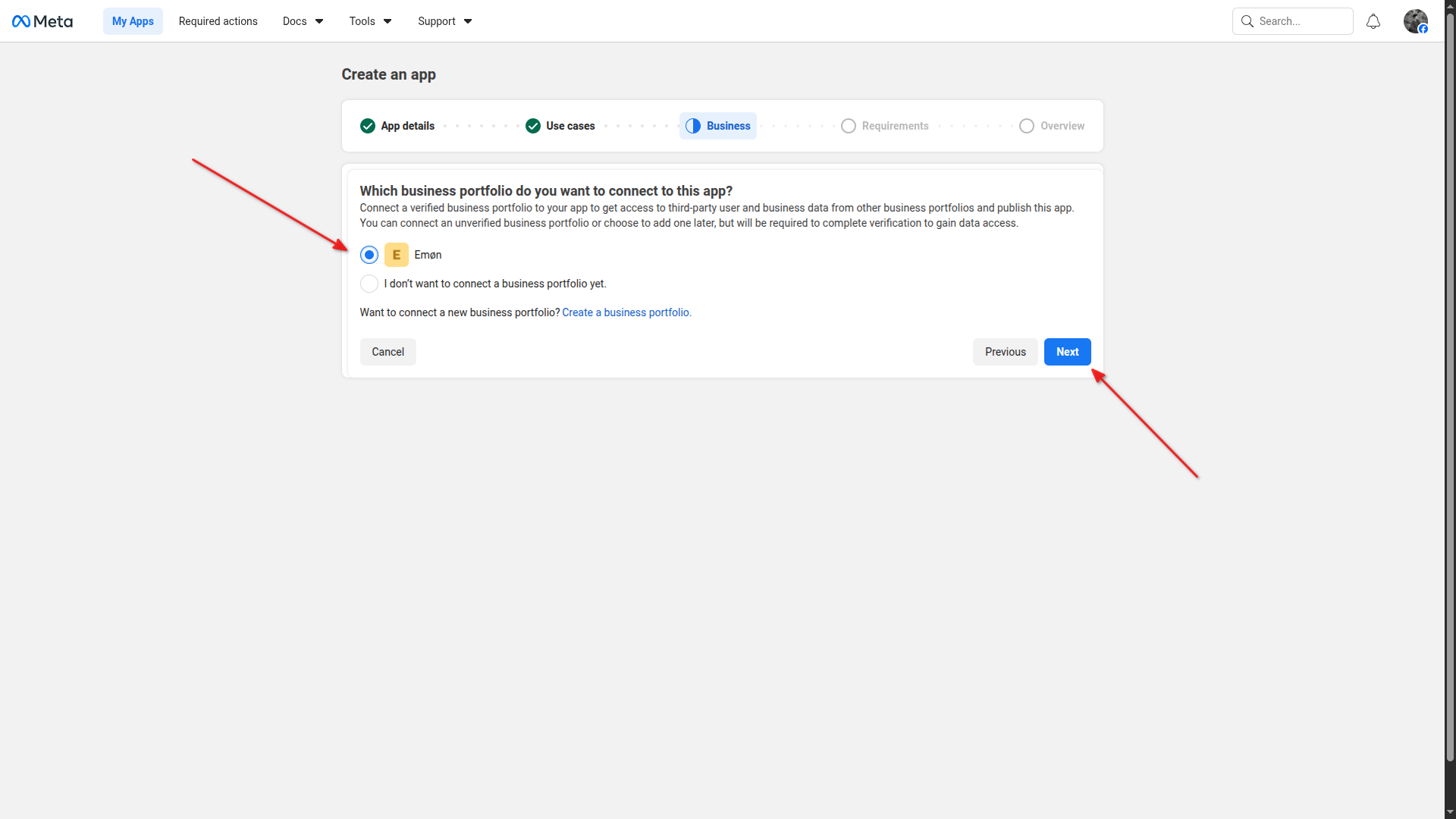
Complete the requirements step
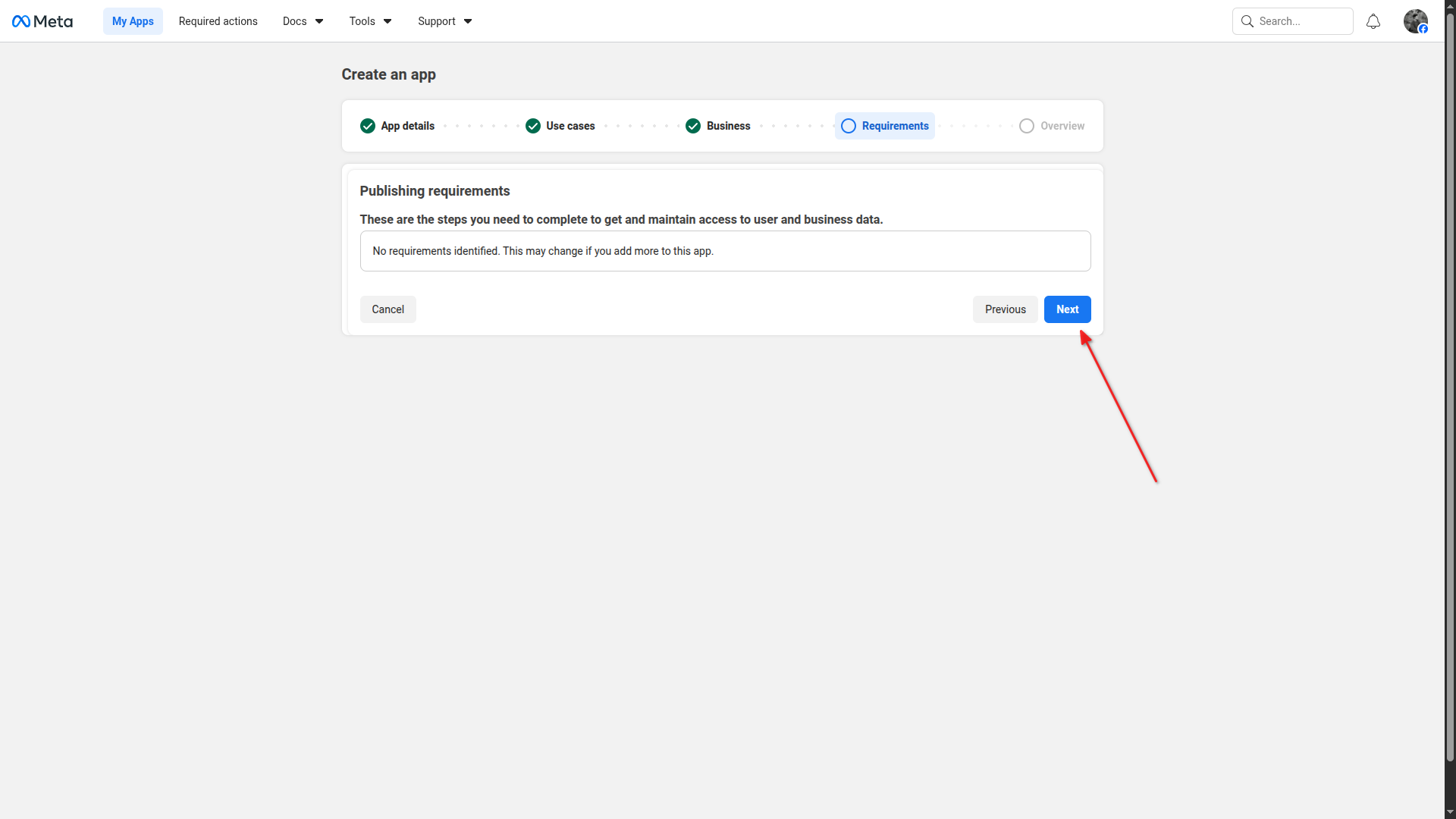
Review the app overview and create the app
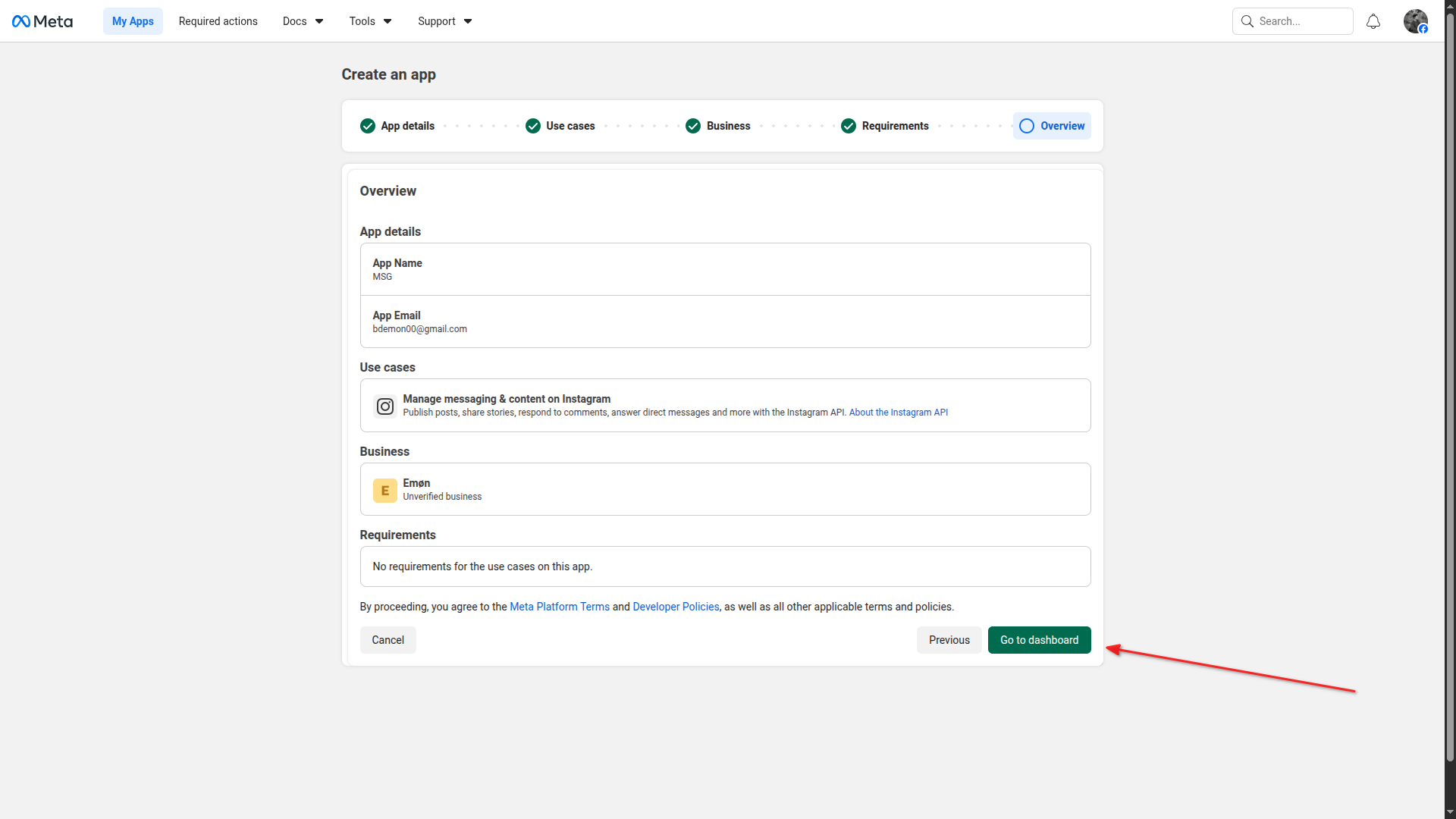
Go to App Settings > Set your app information
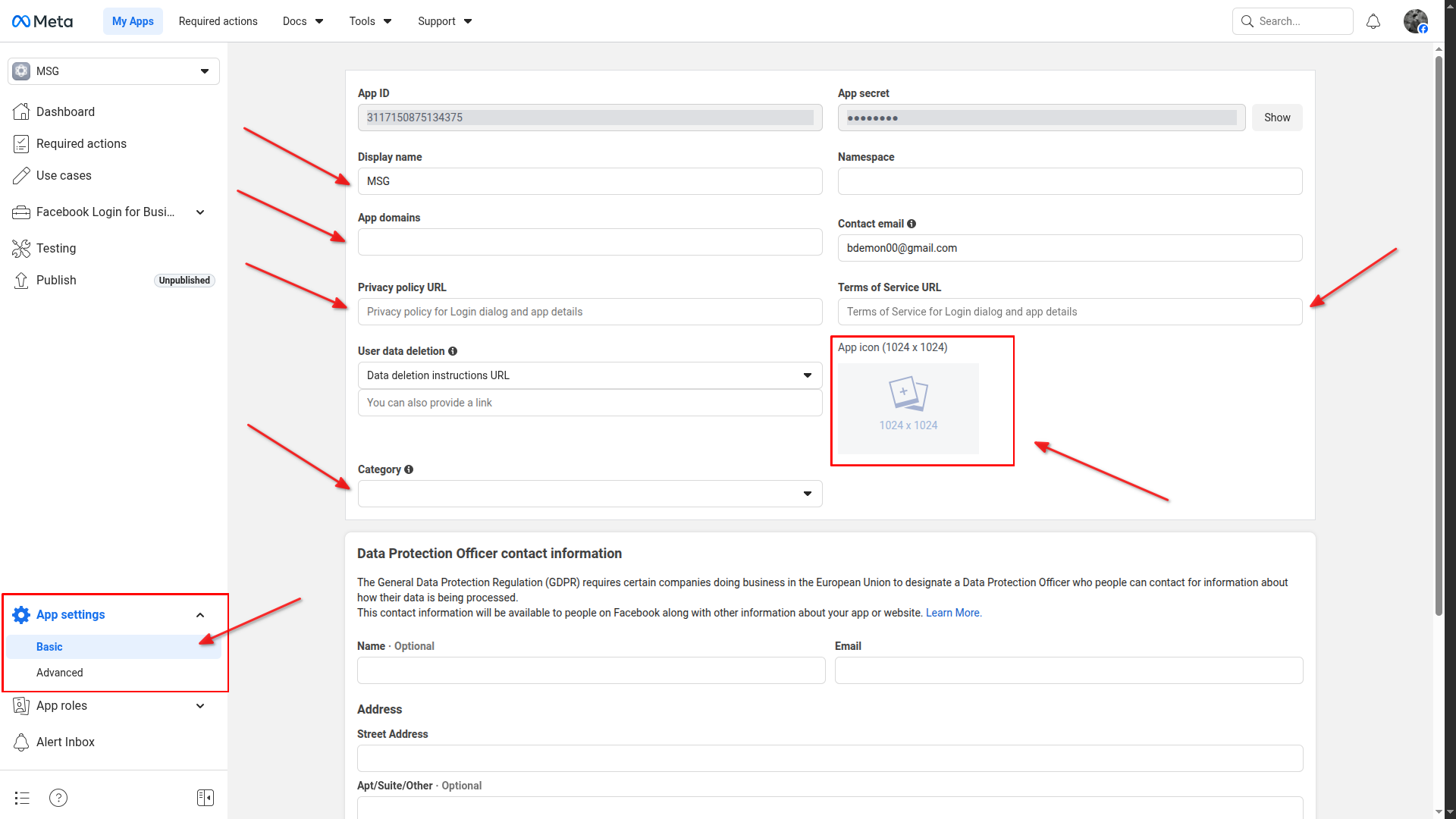
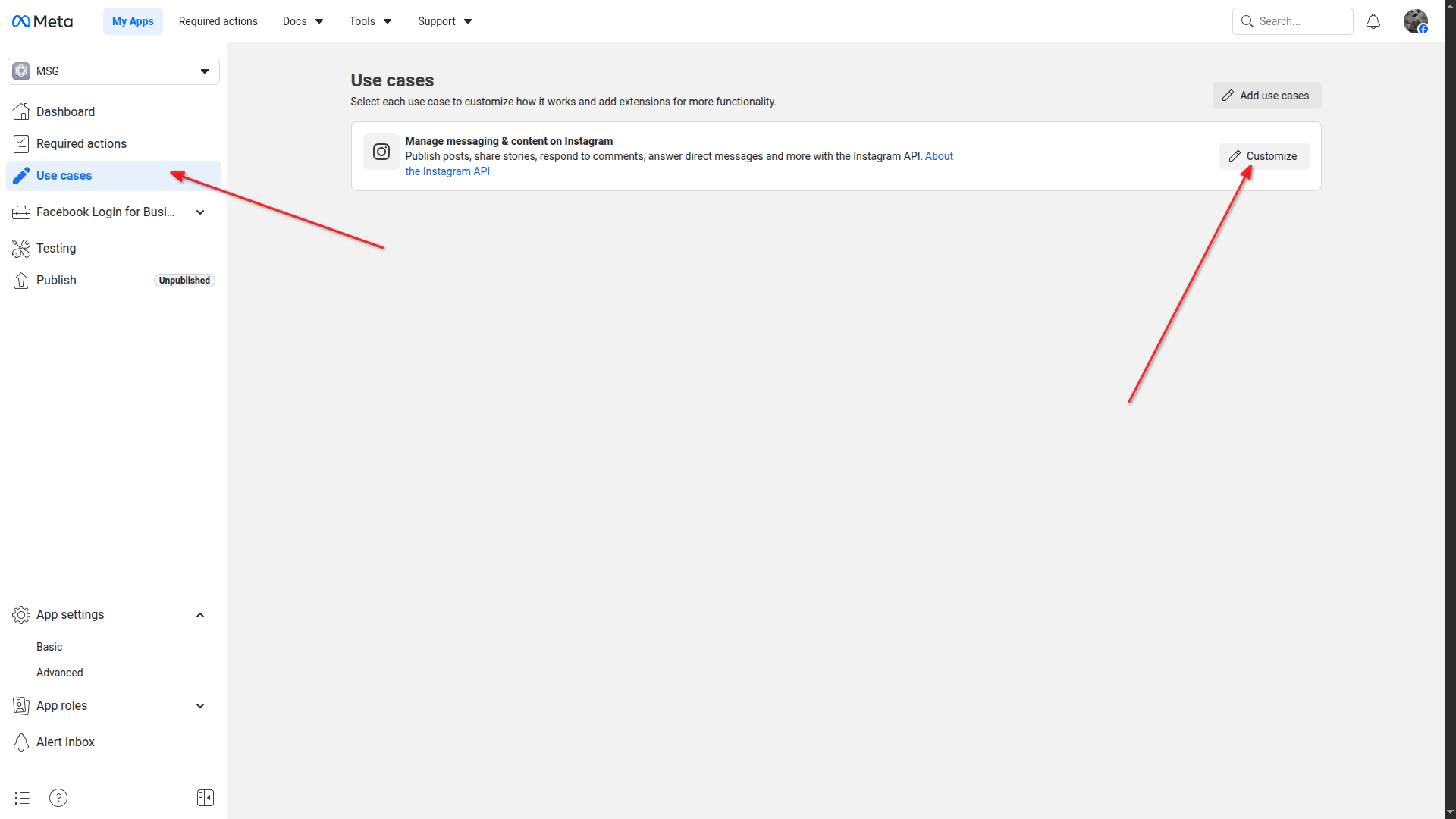
Go to Use cases and click Customize on Instagram API
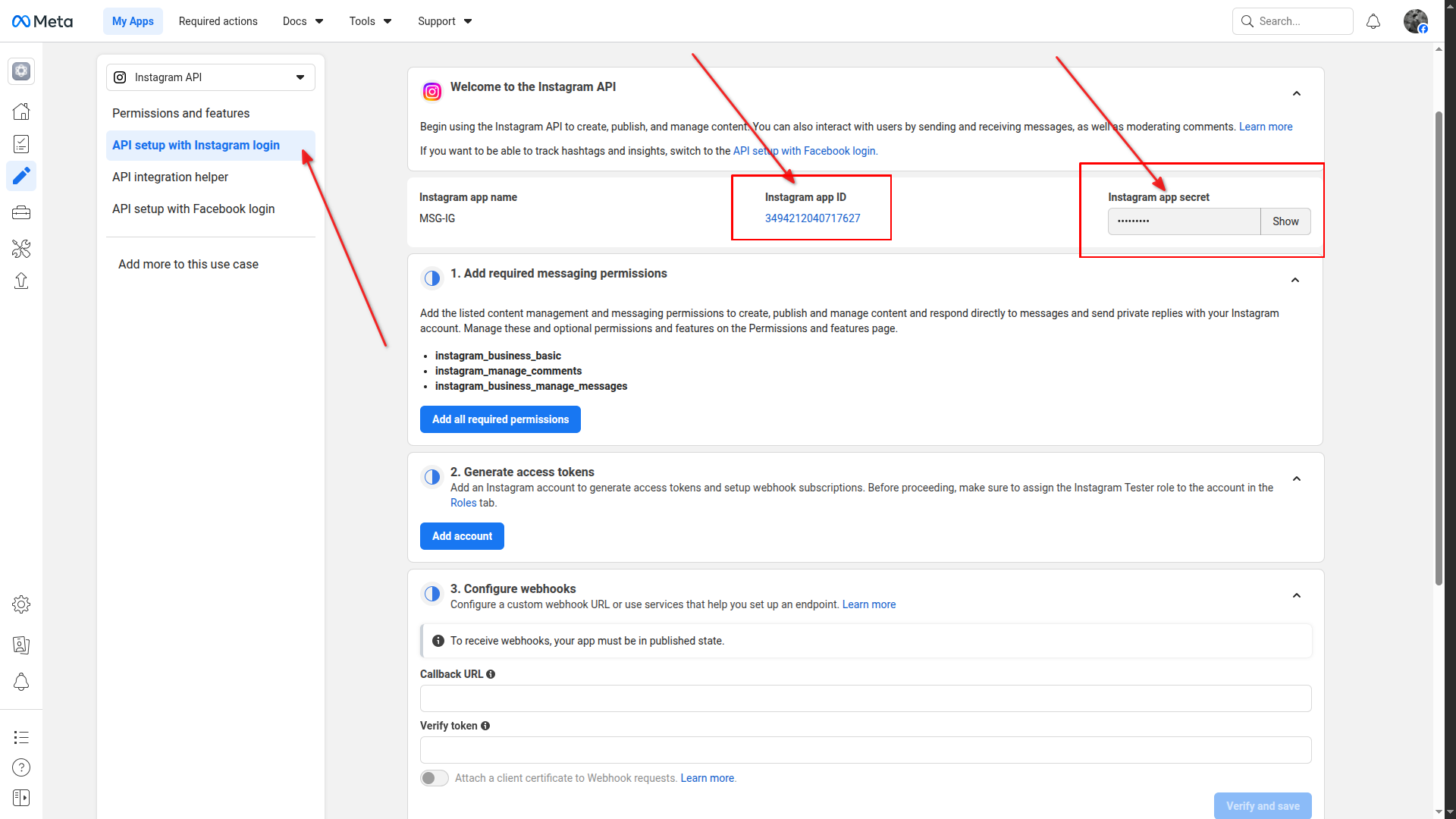
Copy App id and secret
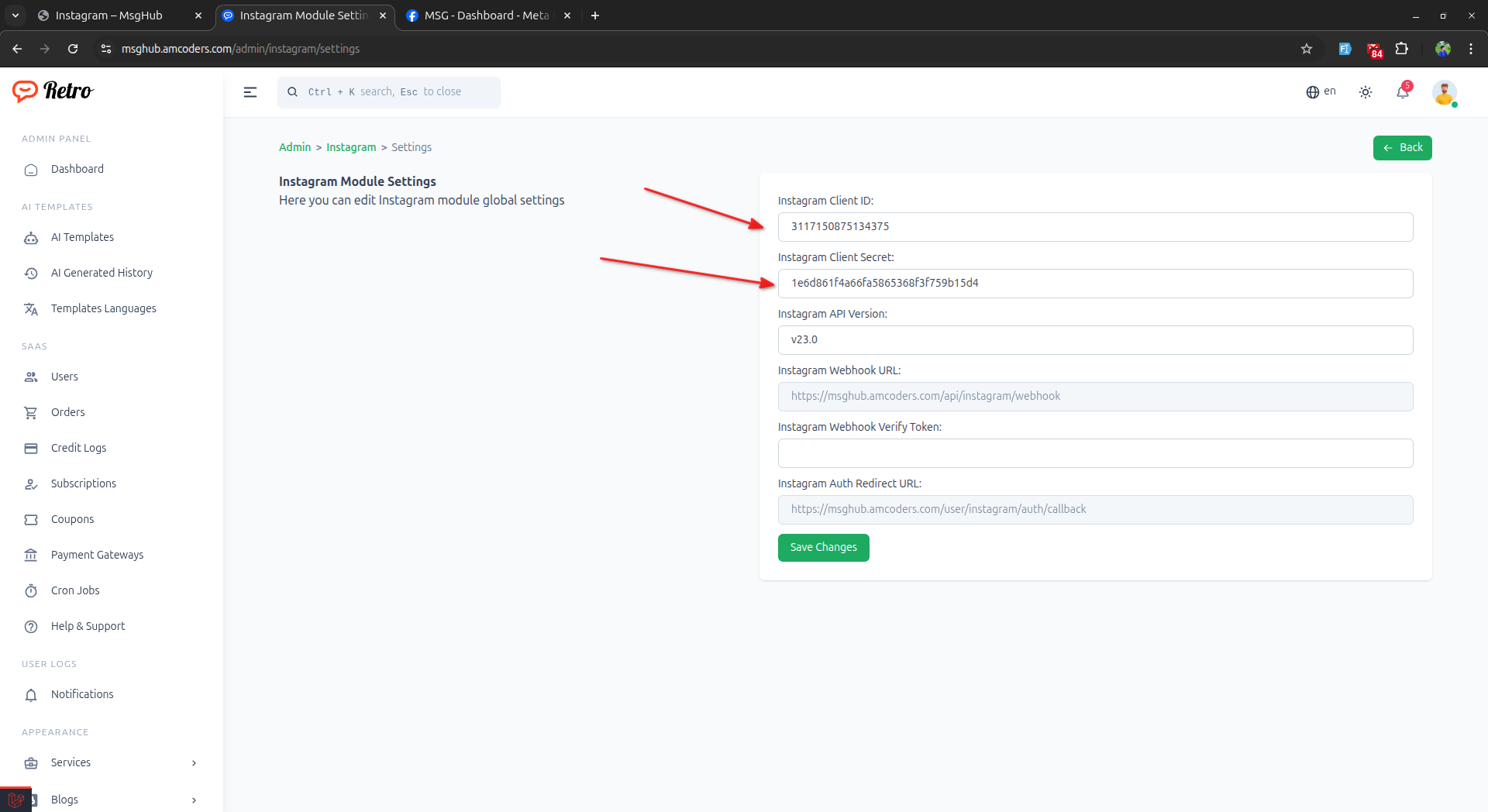
Paste App id and secret
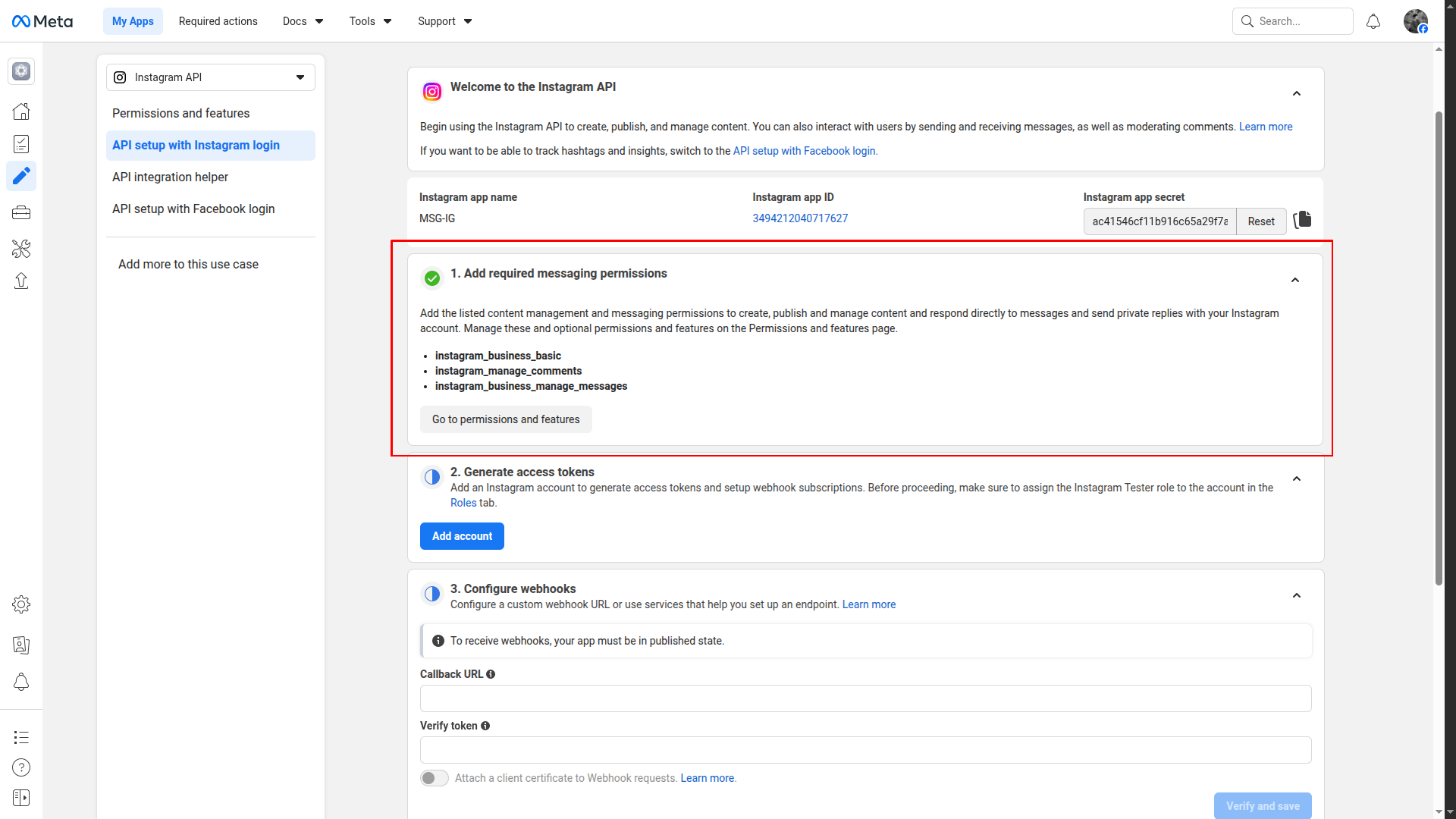
Click Add all required permissions
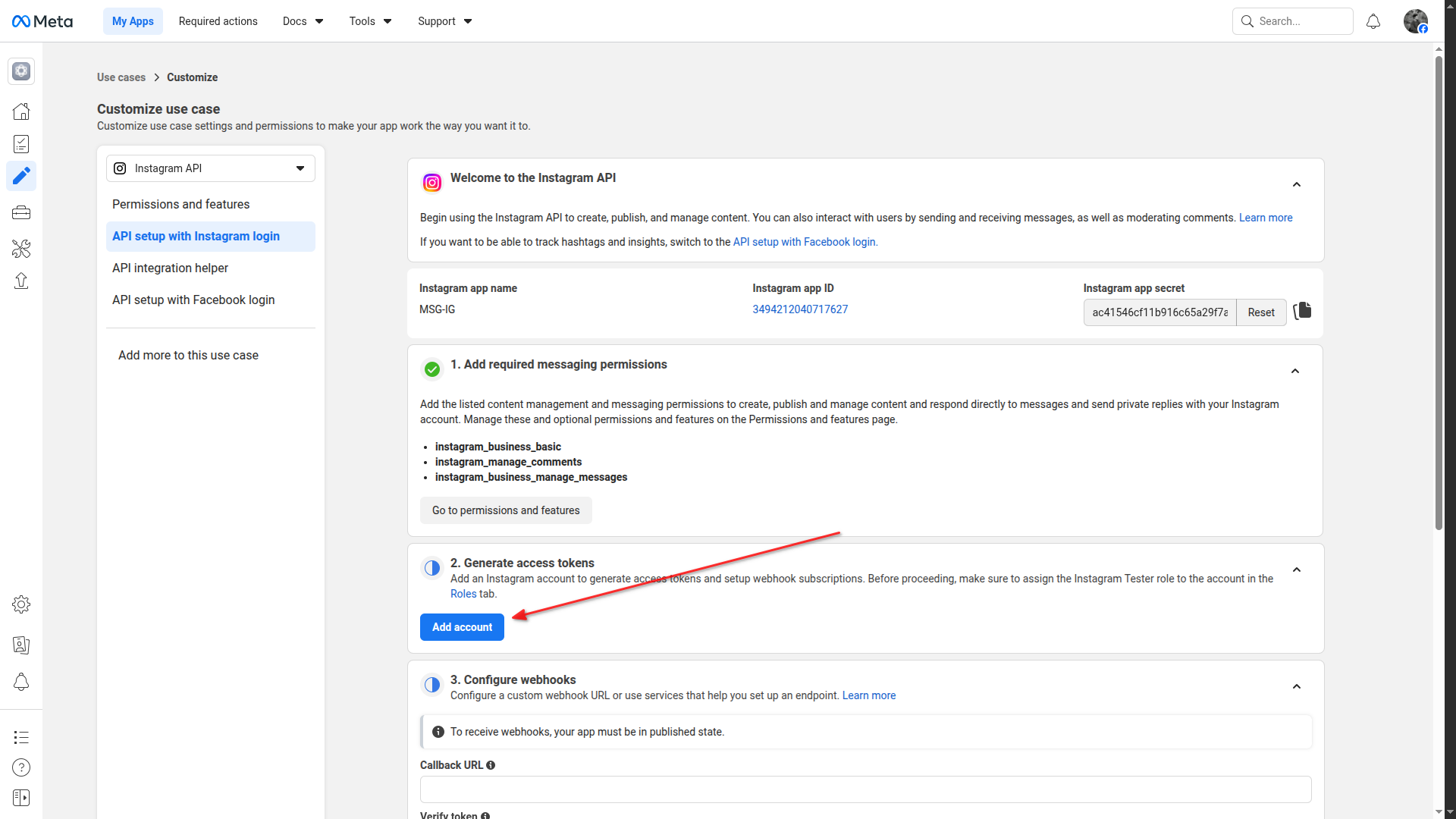
Click Add account to connect Instagram account
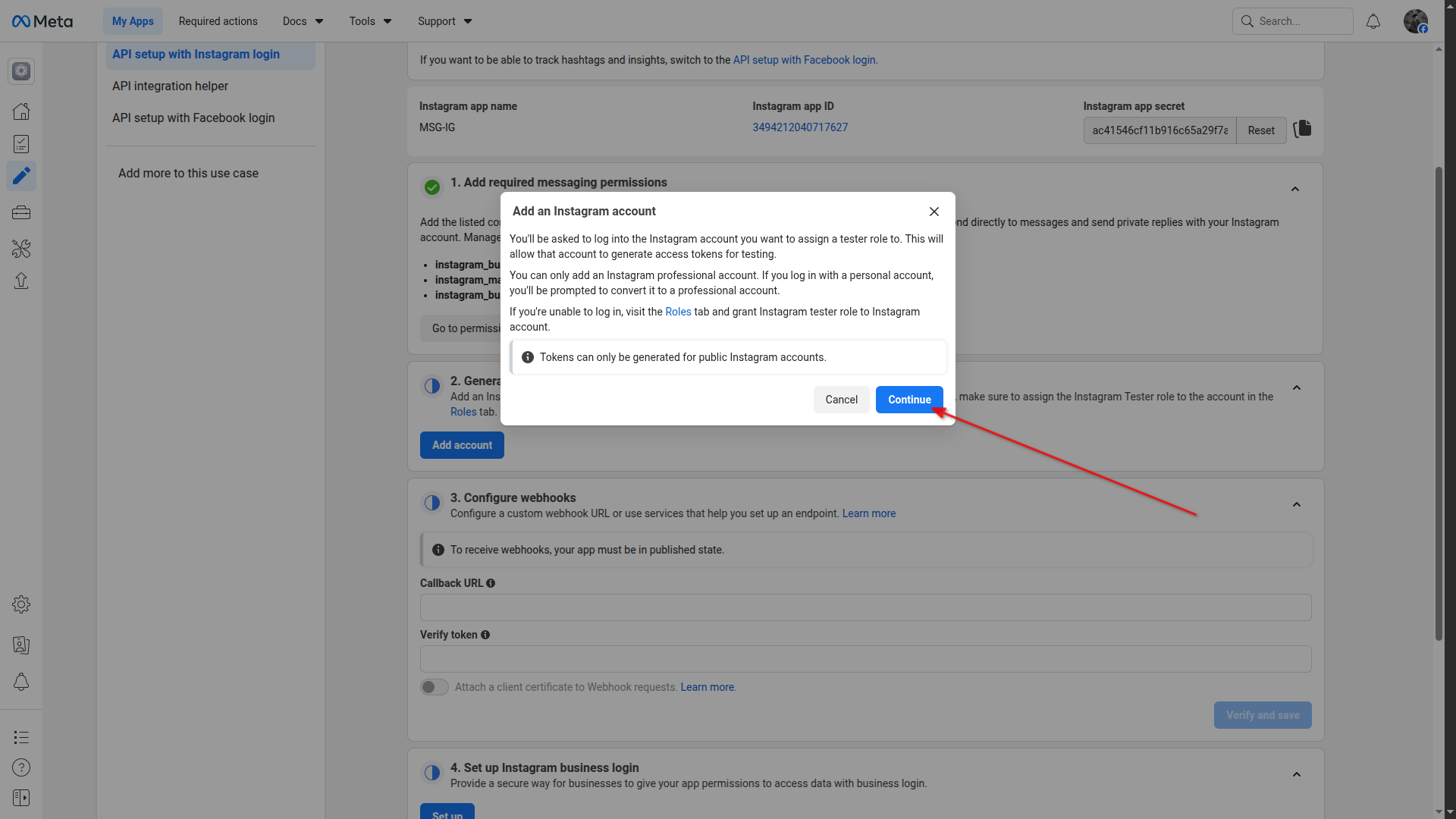
Click Continue
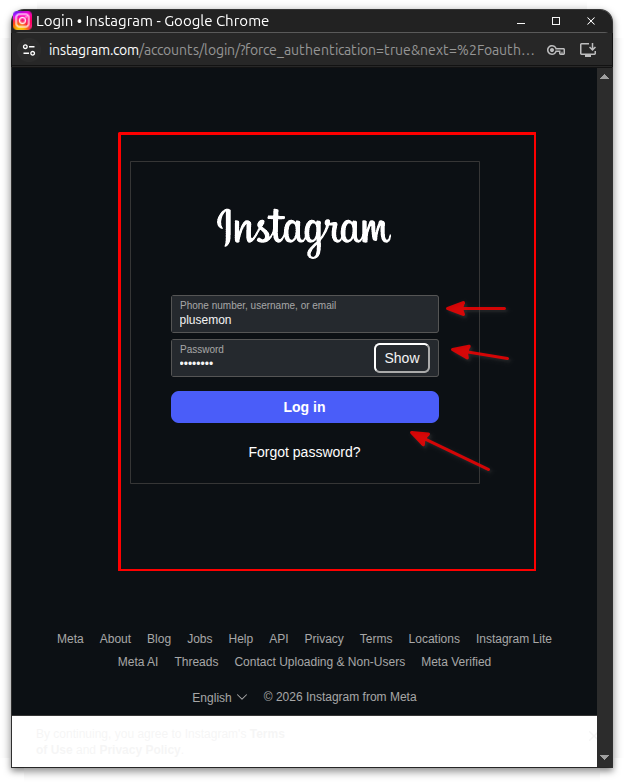
Login with instagram account
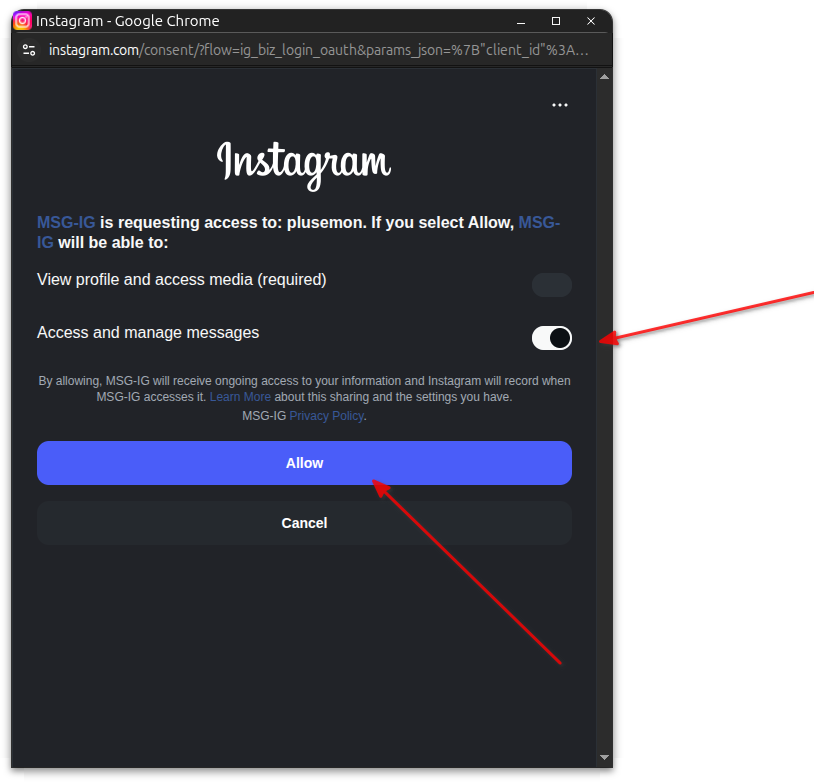
Allow Permissions
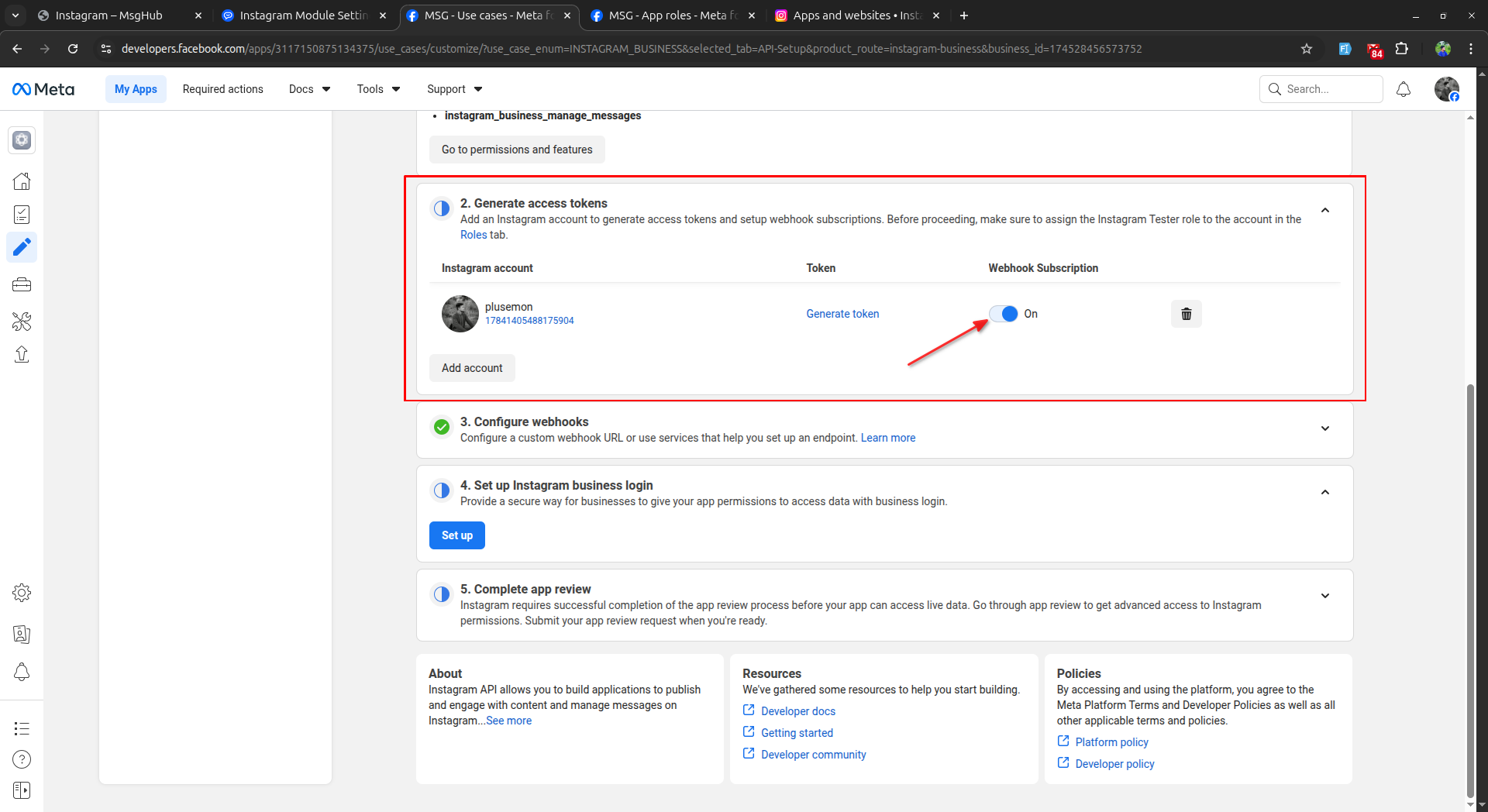
Confirm the account connection and enable webhook
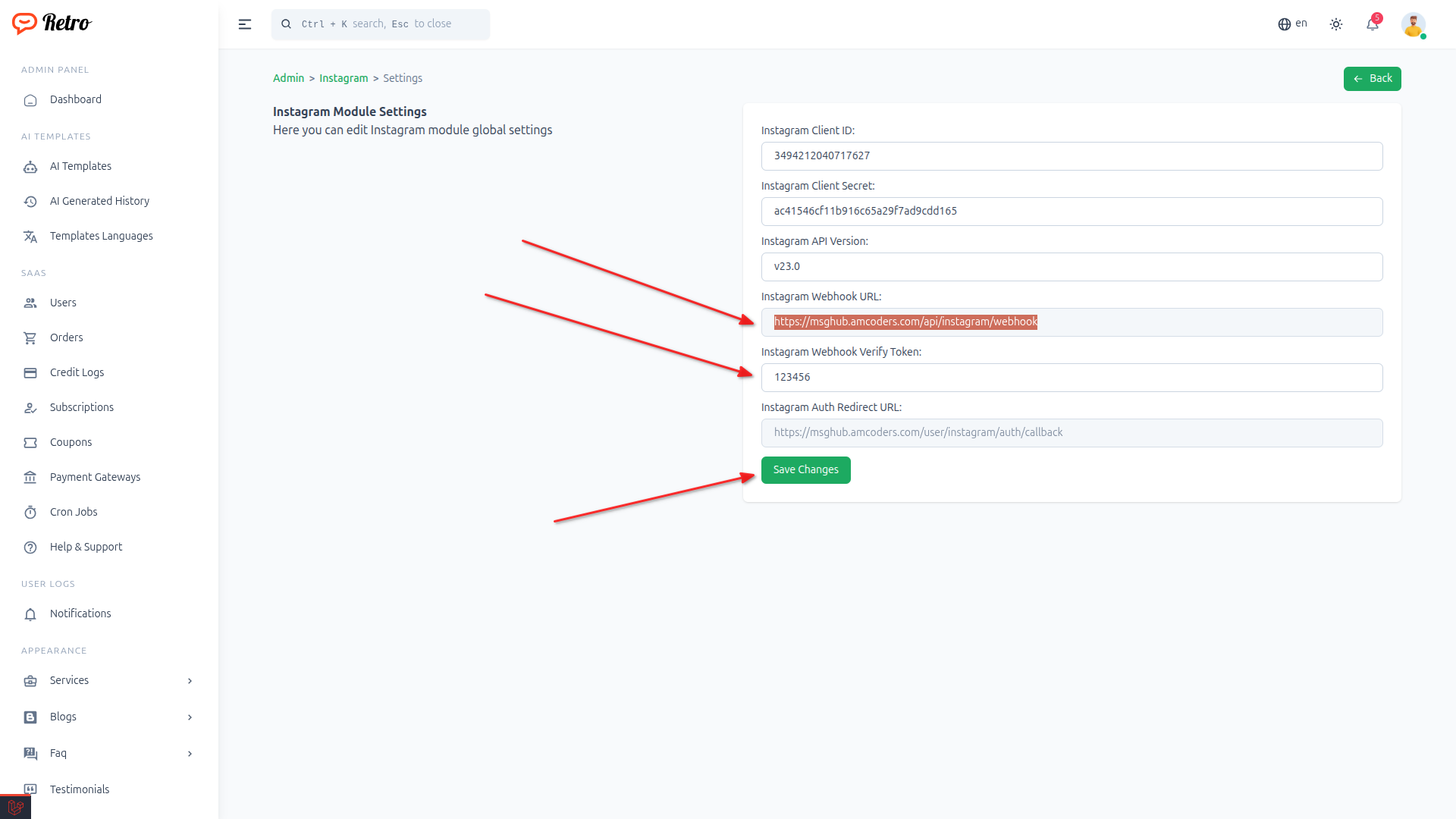
Copy webhook url and secret token then save (token can be anything you want)
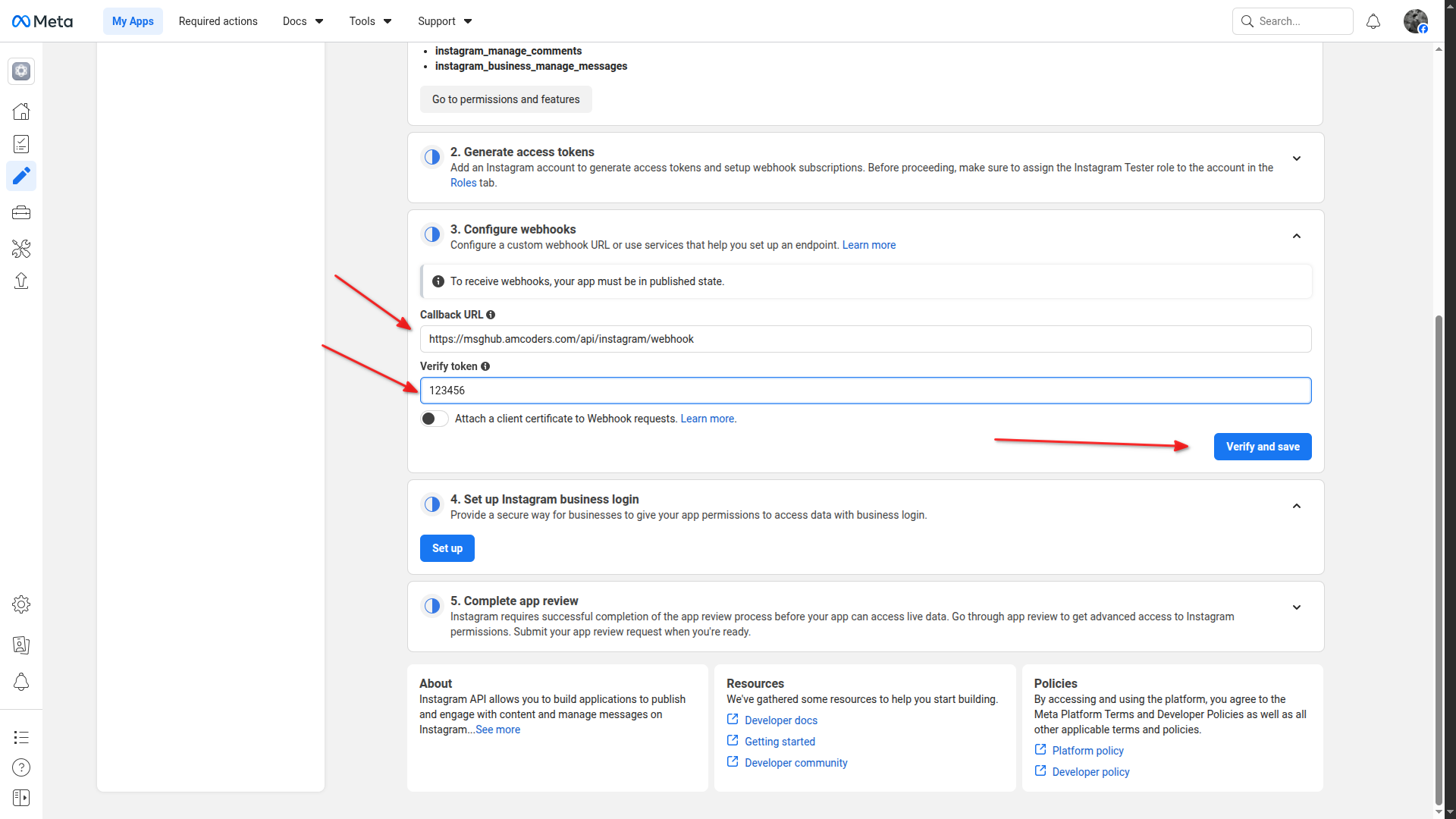
Paste webhook url and secret token and click verify and save
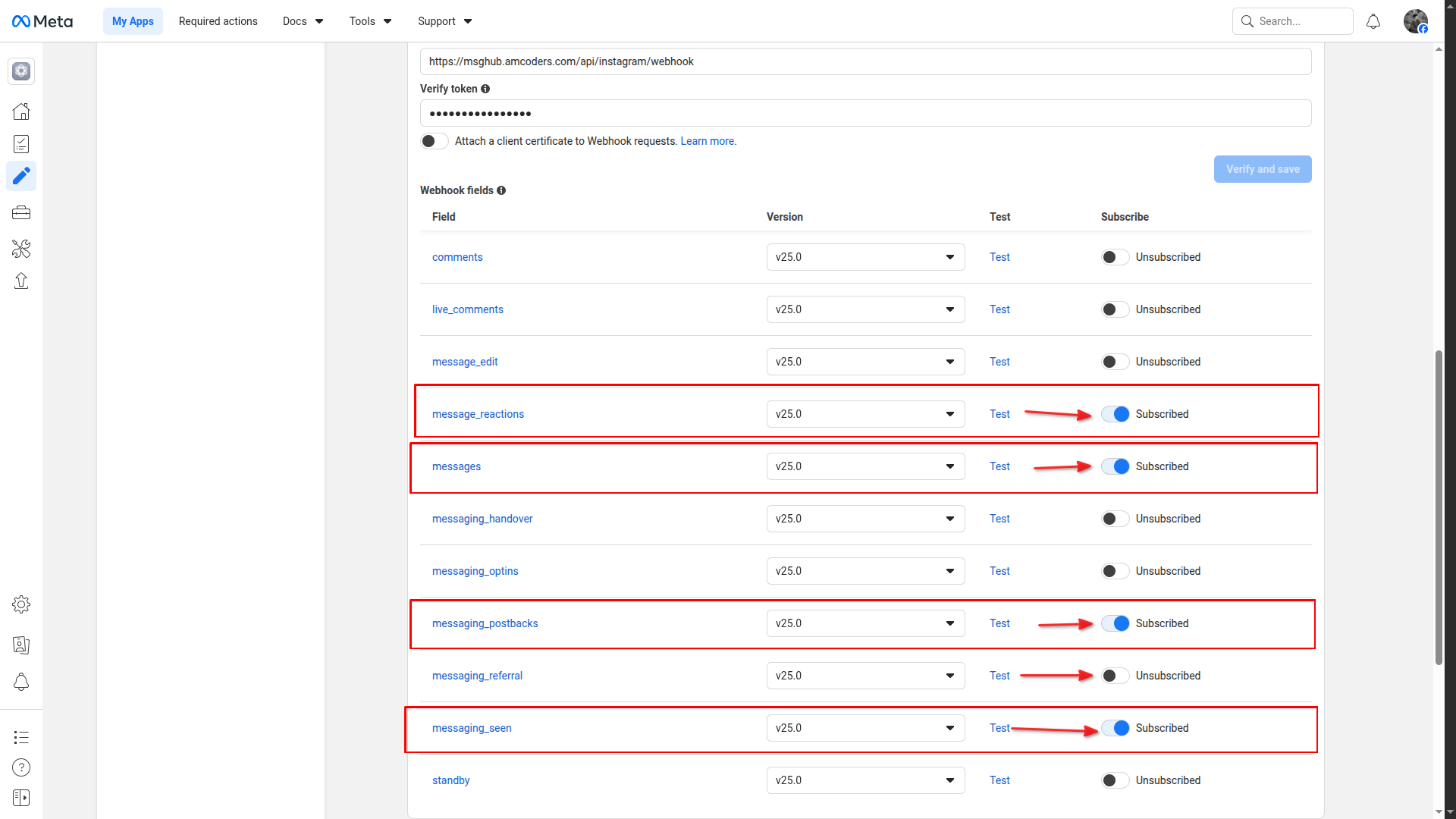
Enable webhook events
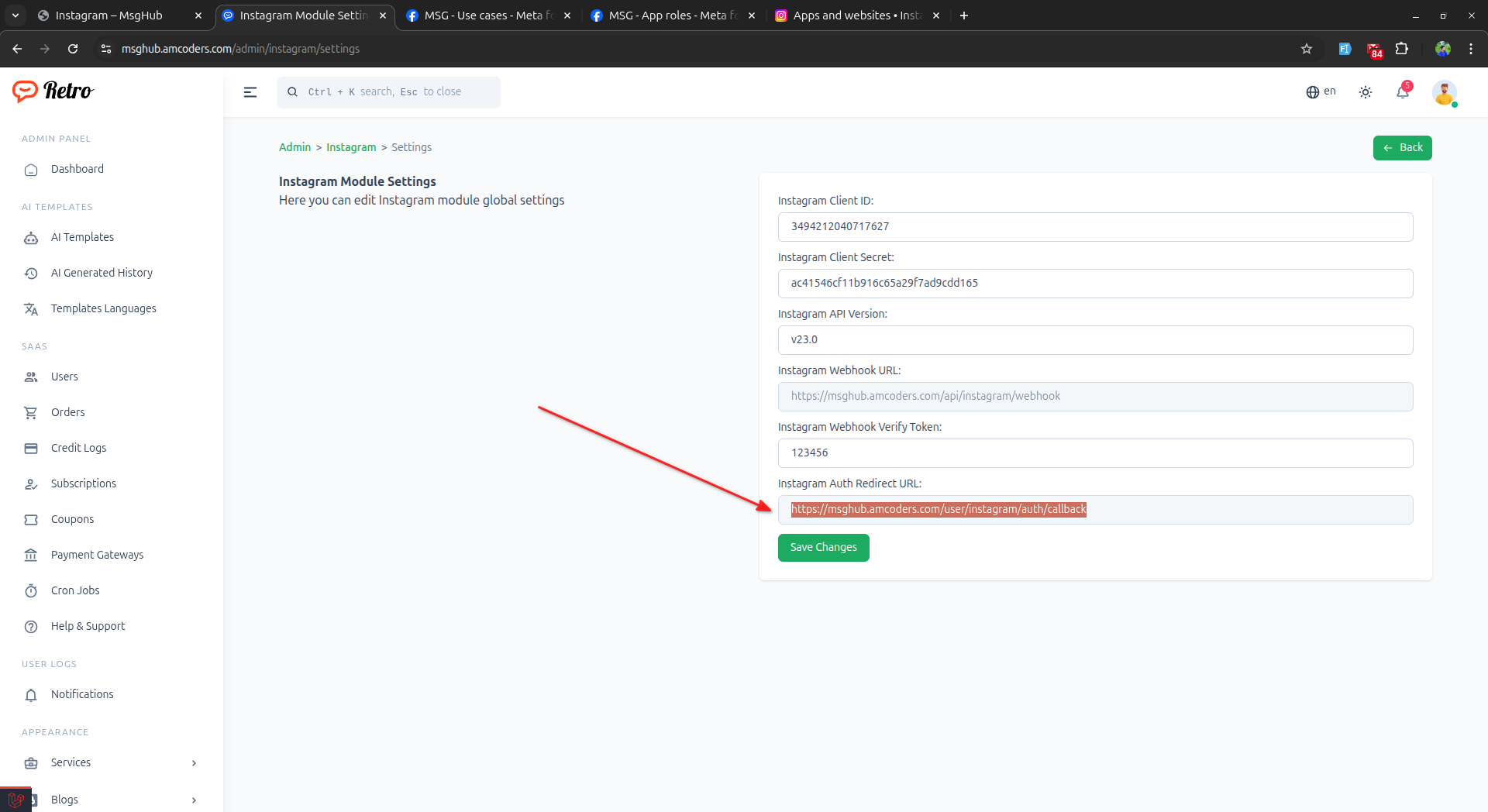
Copy Instagram auth redirect url
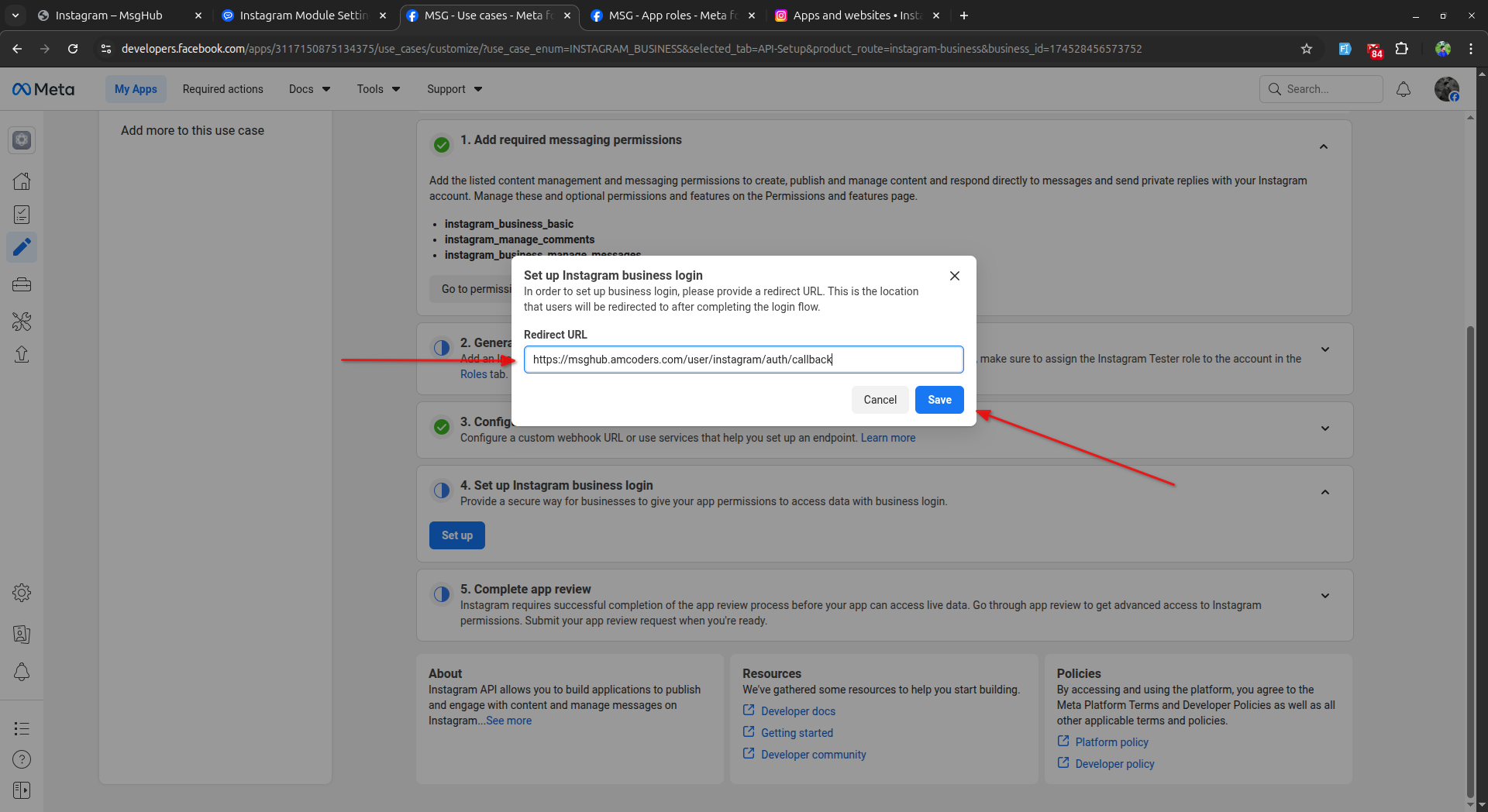
Set the url and save
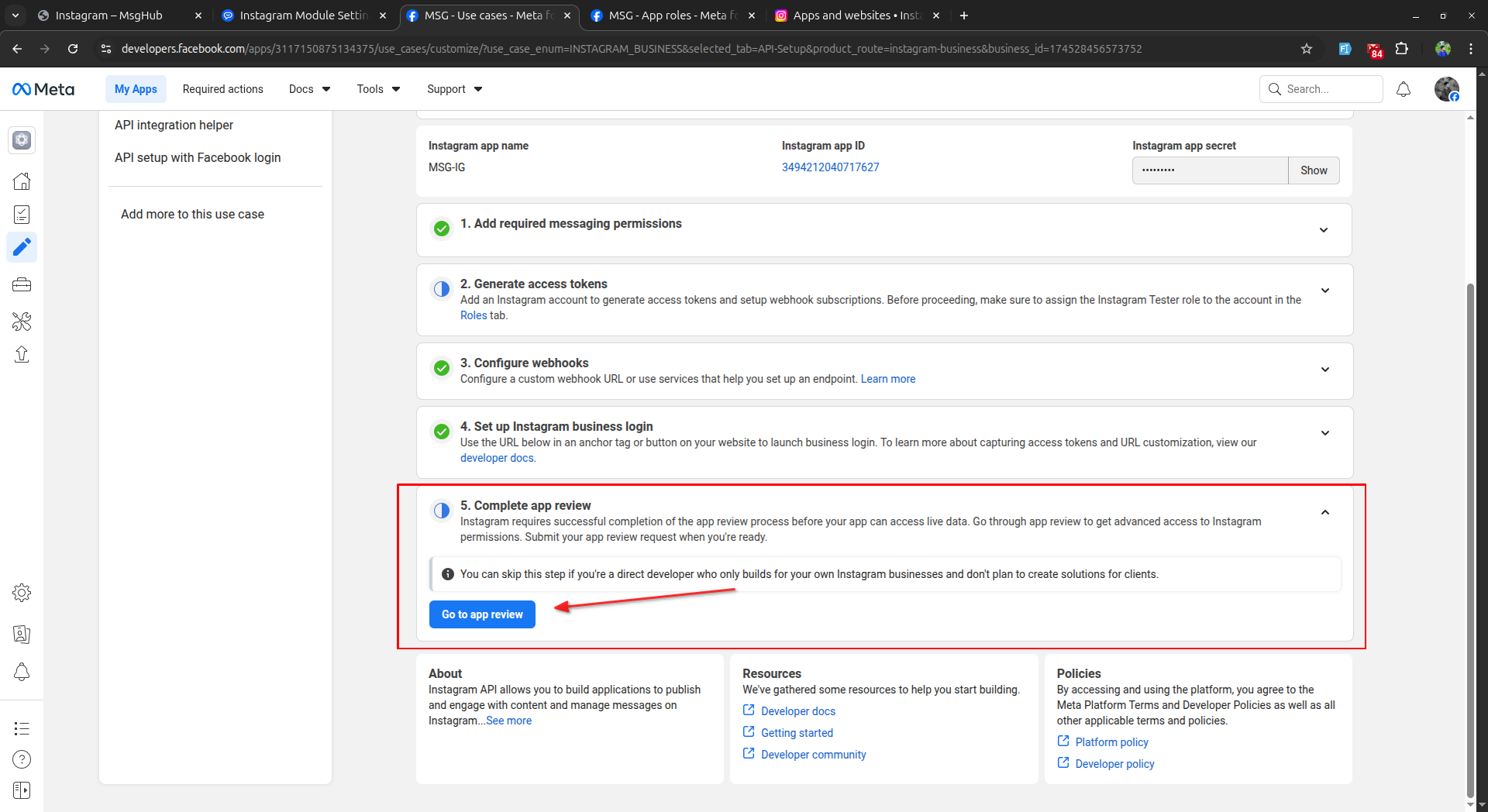
Go to app review
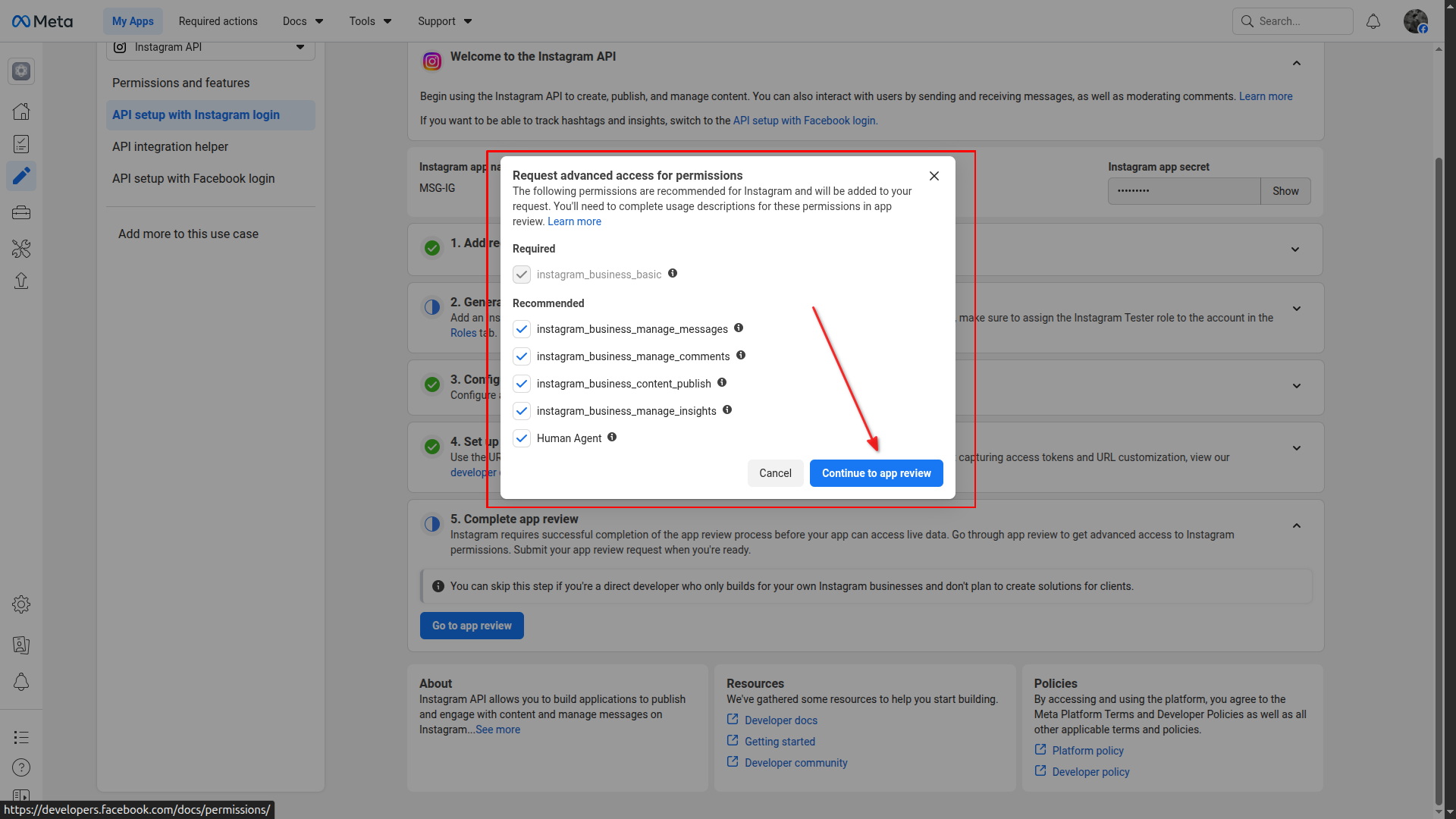
Submit the application for review
Confirm submission details
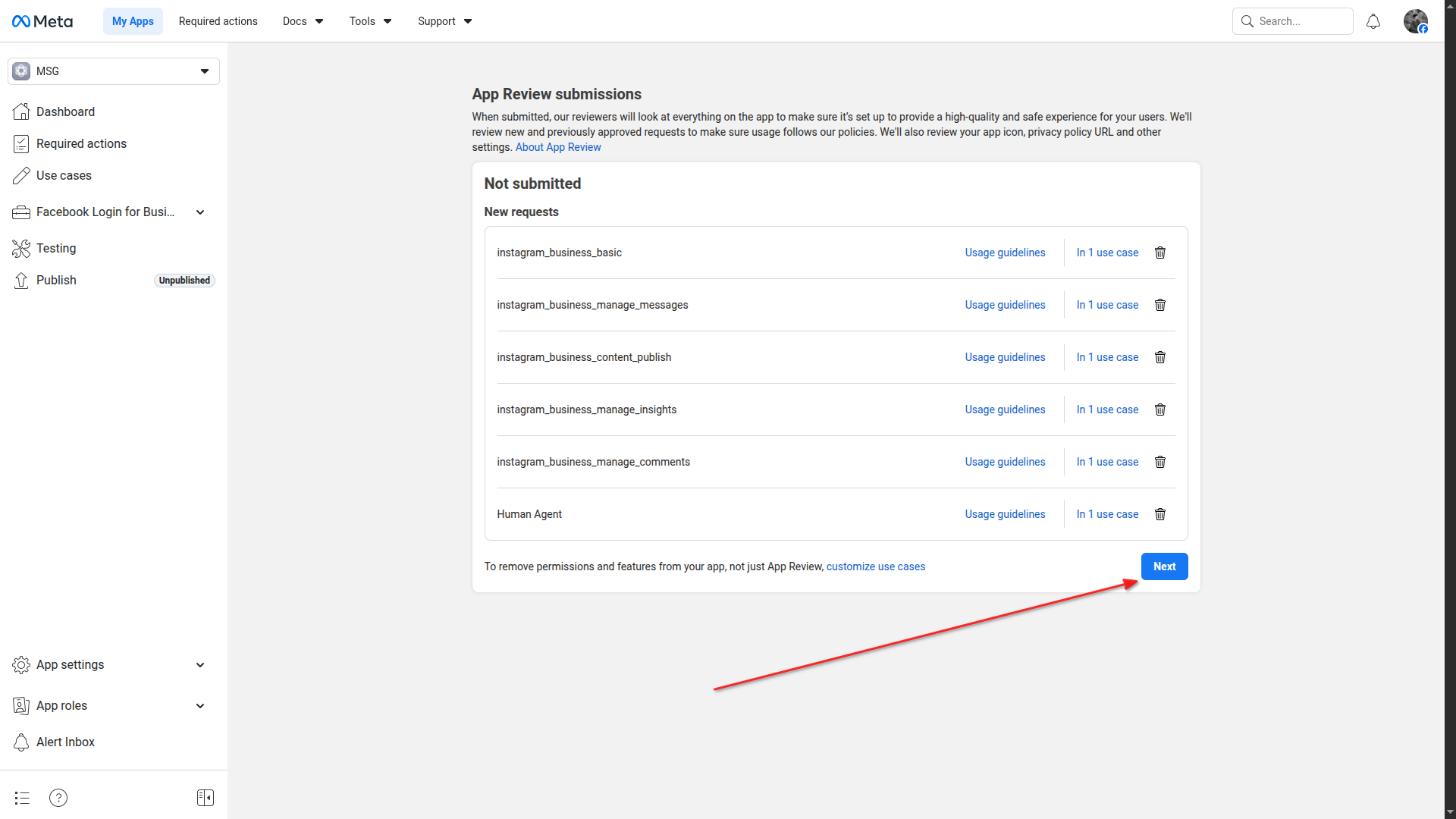
Wait for review completion
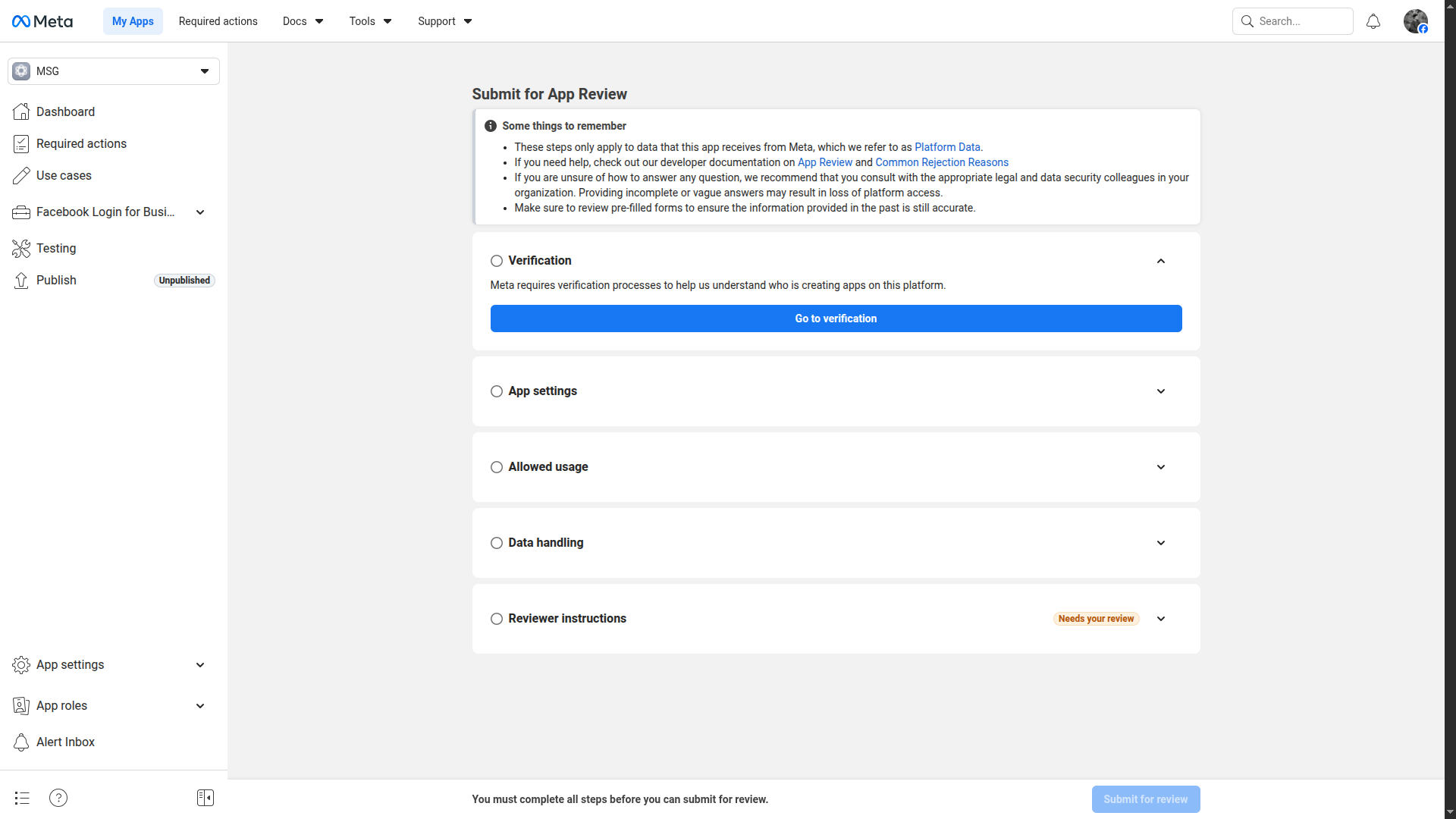
Go to Publish
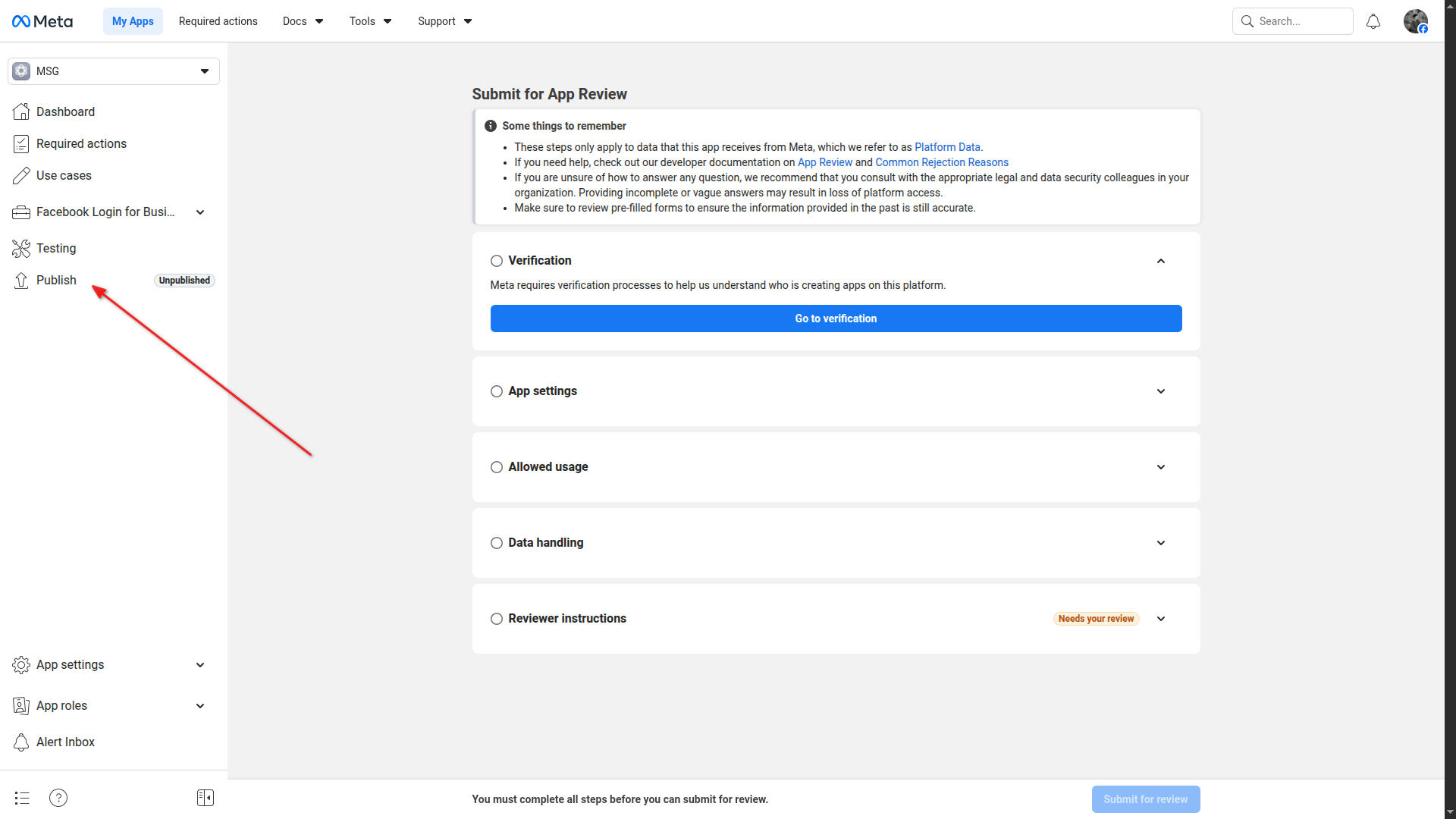
Publish The App
⚠️
Keep your App Secret and Access Tokens confidential. Do not share them publicly or include them in client-side code.